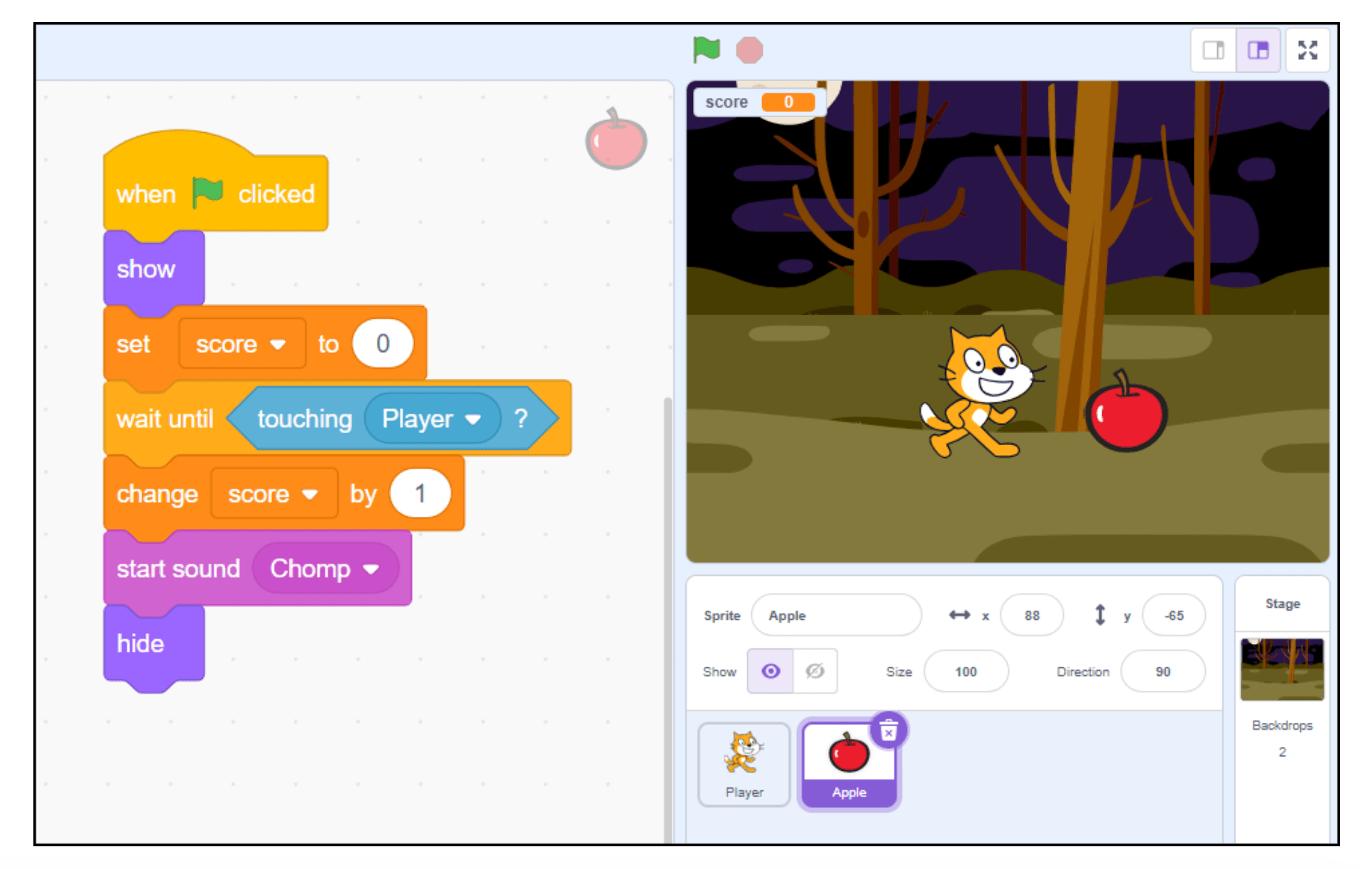
Your kid just finished coding their first Scratch adventure game. The player walks around, touches an apple, the score goes up… and then the apple vanishes forever. Game over in five seconds.
Sound familiar? The good news is, with a few extra blocks, you can make that item respawn at random locations so the game keeps going—and going, and going!
This tutorial shows you how to code an item to disappear and reappear in Scratch, plus how to fix a common bug where the item spawns right on top of the player. It's a natural next step after your learner completes a basic adventure game with items and scoring, and it introduces some powerful game design thinking along the way.
What you'll need before you start
Your learner should already have:
- A player sprite that moves around the screen
- An item sprite (like an apple or coin) that disappears when touched
- Code that updates the score when the player collects the item
If those pieces are in place, you're ready to add respawn mechanics.
Why make items respawn in Scratch?
Without the ability to make items respawn in Scratch, the item disappears when the player touches it—and that's it. The game ends because there's nothing left to collect.
But when you code an item to respawn at a random location, the game becomes "endless." Players can keep collecting, the score keeps climbing, and the challenge stays fresh.
It's a small change in code that makes a huge difference in how fun the game feels.
There are two goals in this tutorial: first, making the item reappear after collection, and second, making sure it doesn't pop up directly on top of the player (which would let them collect it instantly without much effort).
Reorganizing your code for respawn
Before you add respawn logic, you need to split your code into two chunks
- One that runs once when the game starts
- One that runs forever.
Step 1: Click to select the item sprite in the sprite panel.
Step 2: Select the Events block category and drag a new when flag is clicked block to the code area.
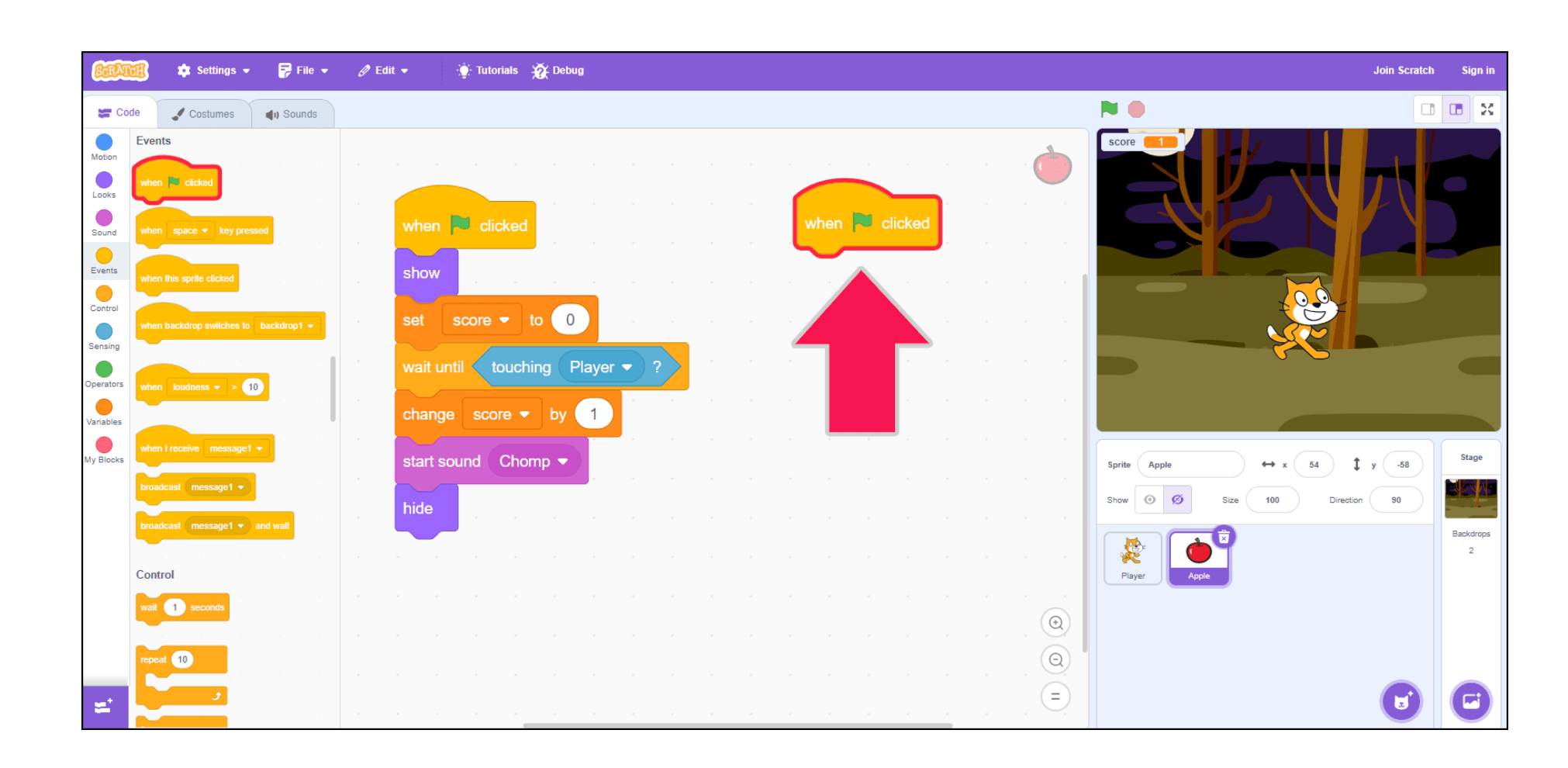
The item will respawn over and over again, so you'll use a forever ↺ block to run the code. A forever ↺ block runs code forever, or until the game is stopped.
Step 3: Select the Control blocks category and attach a forever ↺ block to your new code.
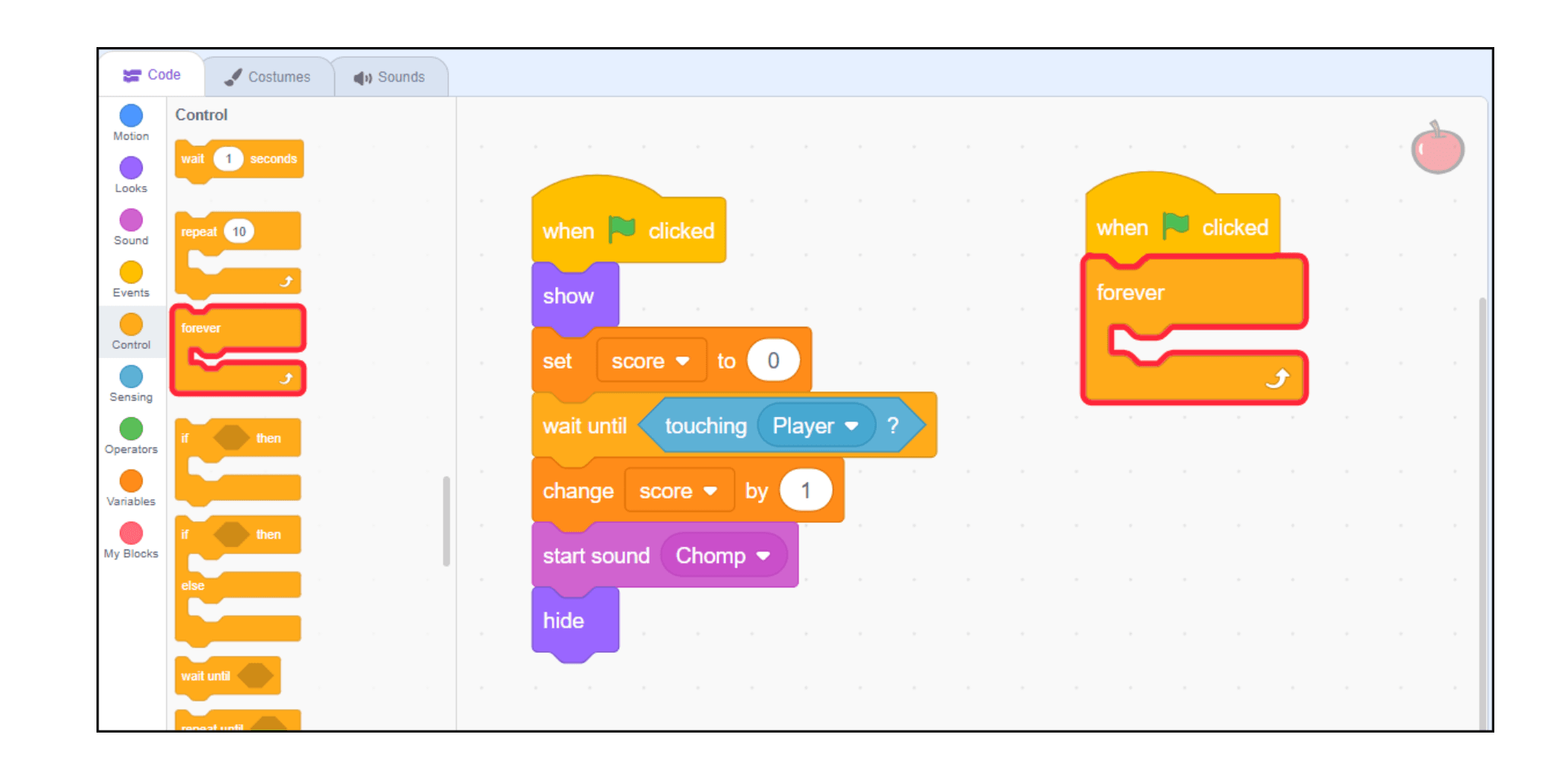
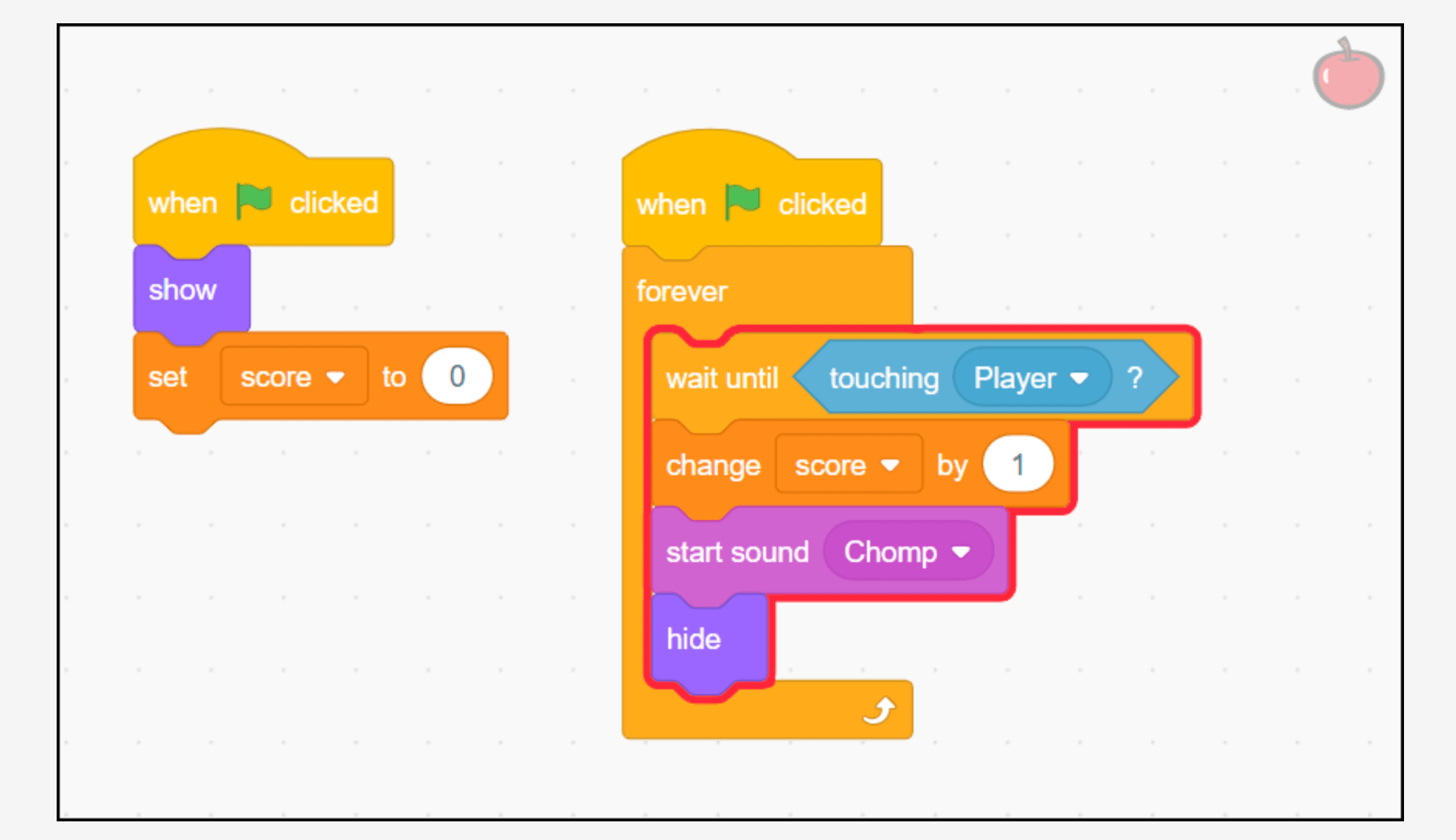
Now you'll move some of your existing code blocks into the new chunk you've created. You'll start with the code that senses when the player is touching the item.
Step 4: Click and drag the wait until touching Player? blocks into your forever ↺ block.
Making the item reappear after collection
Next, you'll code the item to wait and then reappear using the go to random position block.
Step 1: Select the Control block category and attach a wait 1 seconds block to your code.
Step 2: Select the Motion block category and attach a go to random position block.
Step 3: Select the Looks block category and attach a show block.
Now, the item should reappear after you collect it! Test your game—the apple (or whatever item you're using) will vanish when touched, wait one second, then pop back up somewhere new on the screen.
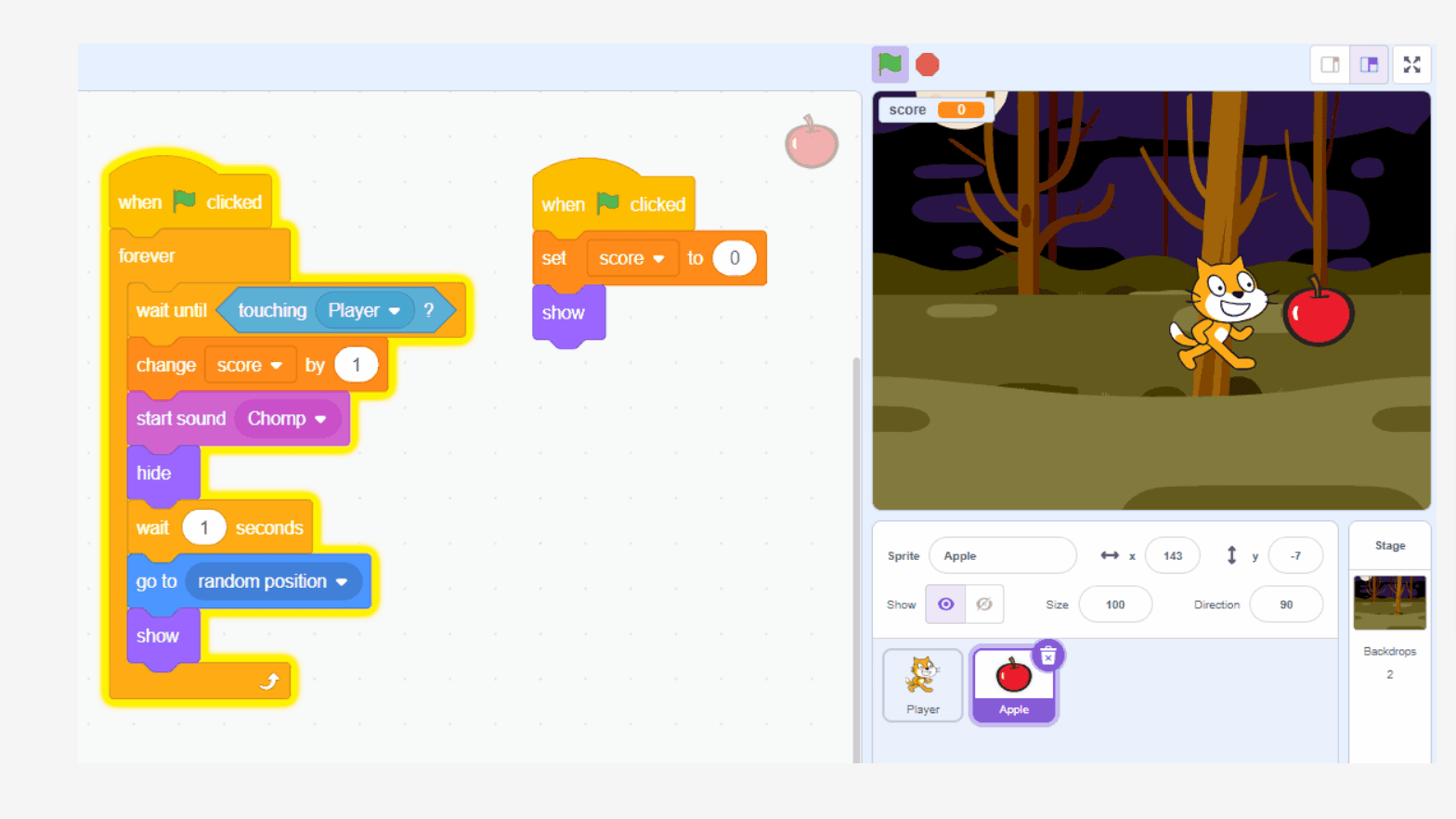
Preventing items from spawning on top of the player
You may notice that the item sometimes spawns directly on top of the player, letting them collect it instantly. You can prevent this from happening by updating your code.
First, you need the item to reappear before it moves. This will help your code sense if the player is touching the item.
Step 1: Right-click on your go to random position block and select Delete Block.
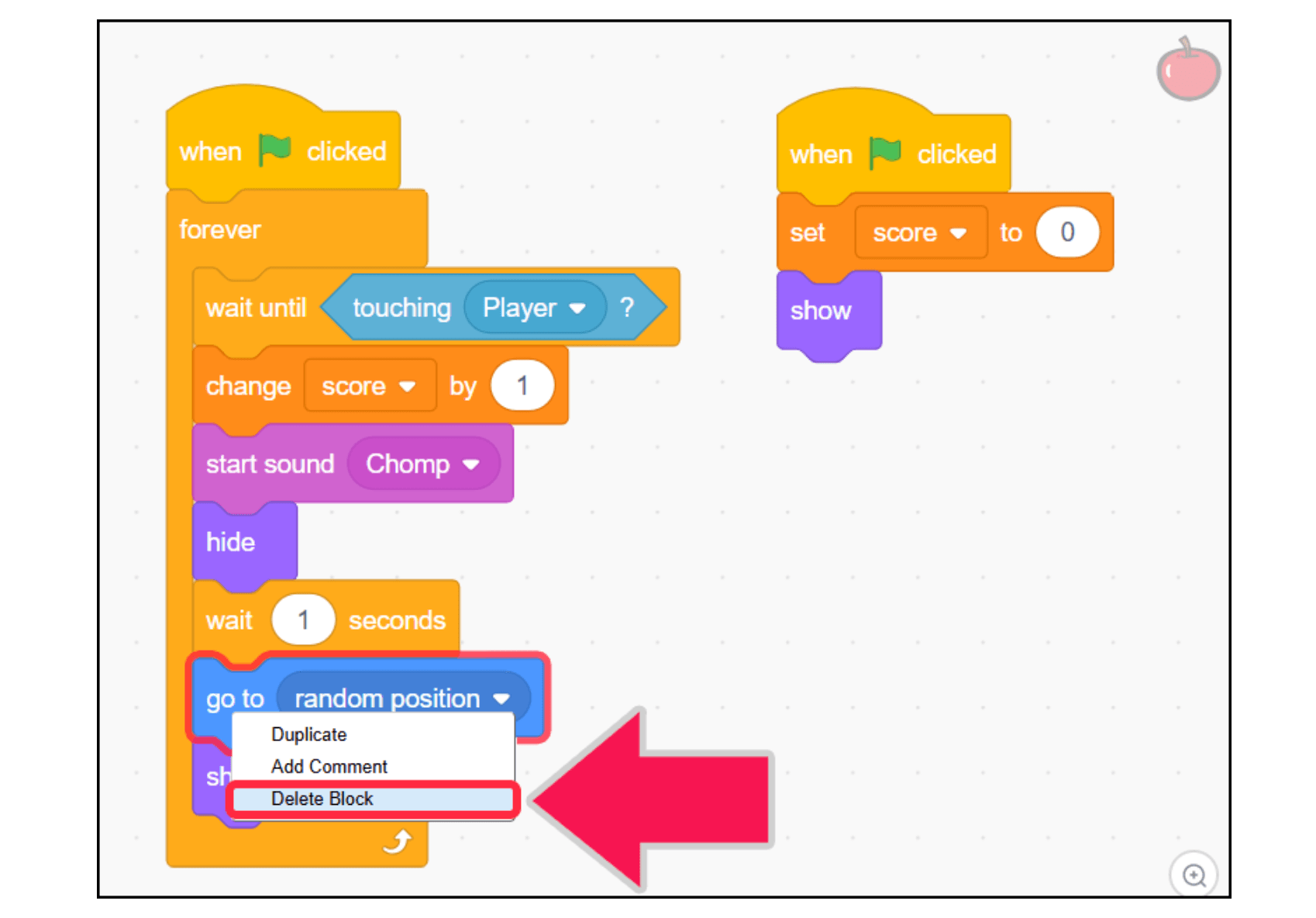
You'll use a repeat until <> block to run the code until the item is no longer touching the player.
Step 2: Select the Control block category and attach a repeat until <> block to your code.
You need to sense when the item is not touching the player, so you'll use the not <> operator.
Step 3: Select the Operators category and drag a not <> block into the repeat until <> block's brackets.
Step 4: Select the Sensing block category and drag a touching mouse-pointer? block into the operator.
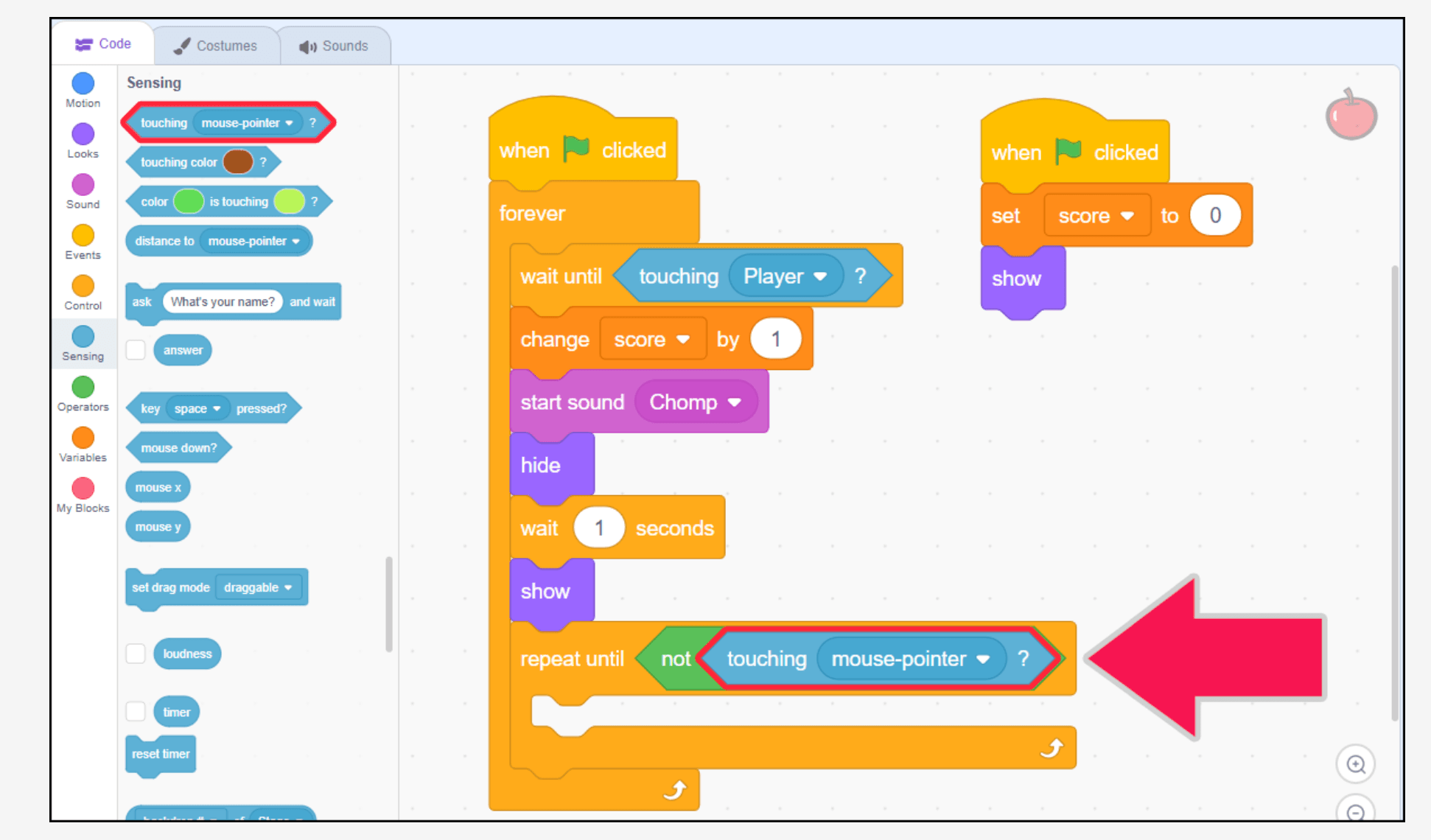
Step 5: Click the mouse-pointer drop-down and select "Player".
Now, you can send the item to a random position.
Step 6: Select the Motion block category and drag a go to random position block into your code.
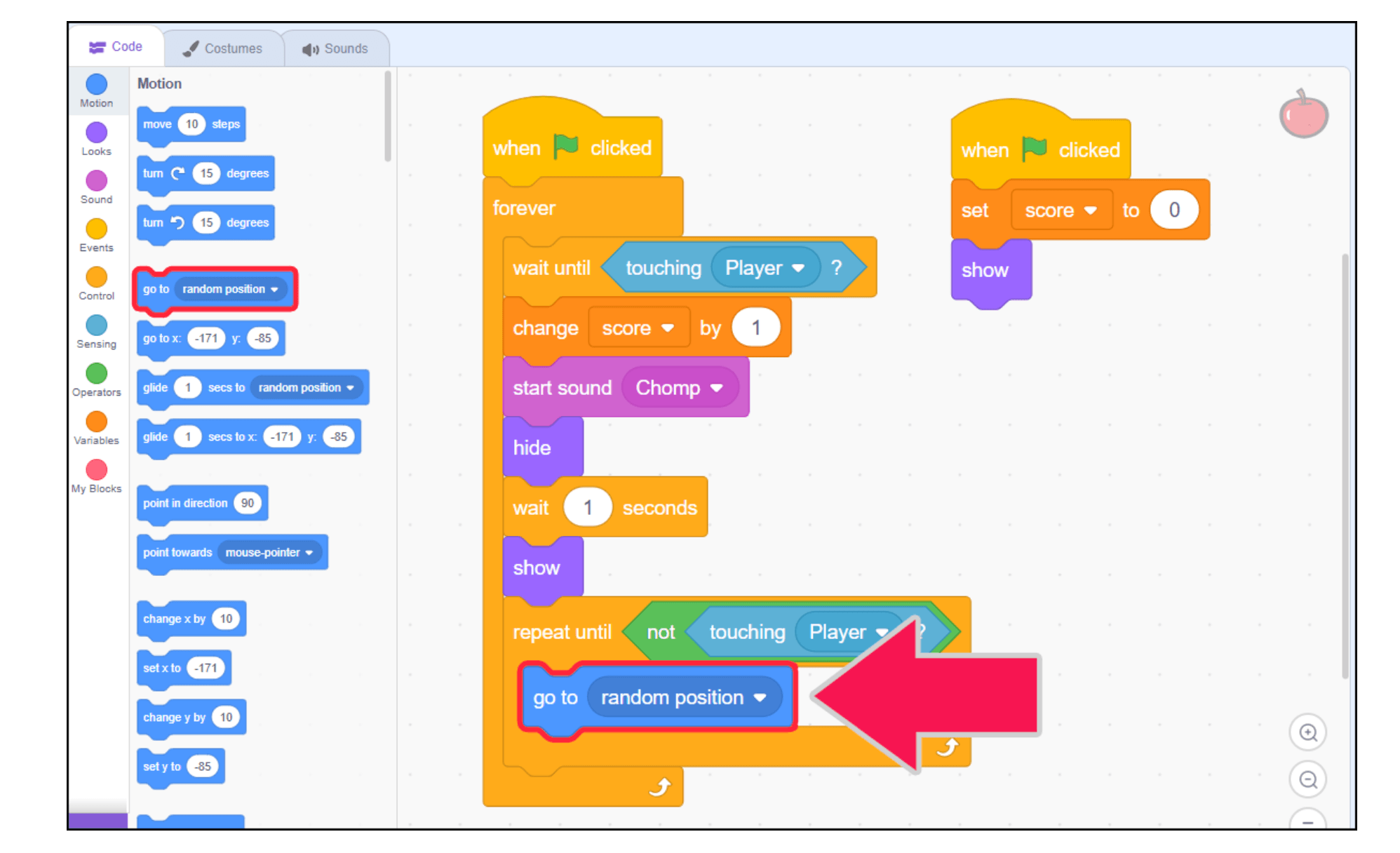
Now, test! The item should respawn in a random location each time, without ever touching the player. The repeat until loop keeps trying new random positions until it finds one where the player isn't standing.
An important part of game design is testing, finding issues with your code, and fixing them. The spawn-on-player problem is a perfect example: the first version of the respawn code worked, but it didn't work well. Noticing that issue and solving it with a repeat until loop is exactly the kind of iterative thinking that turns a basic project into a polished game.
Take it further: more items and starting positions
Ready to level up? Try these two extensions:
Duplicate the item so there are multiple collectibles
(Make sure your item is fully coded before you duplicate it, so you don't have to edit them all later.)
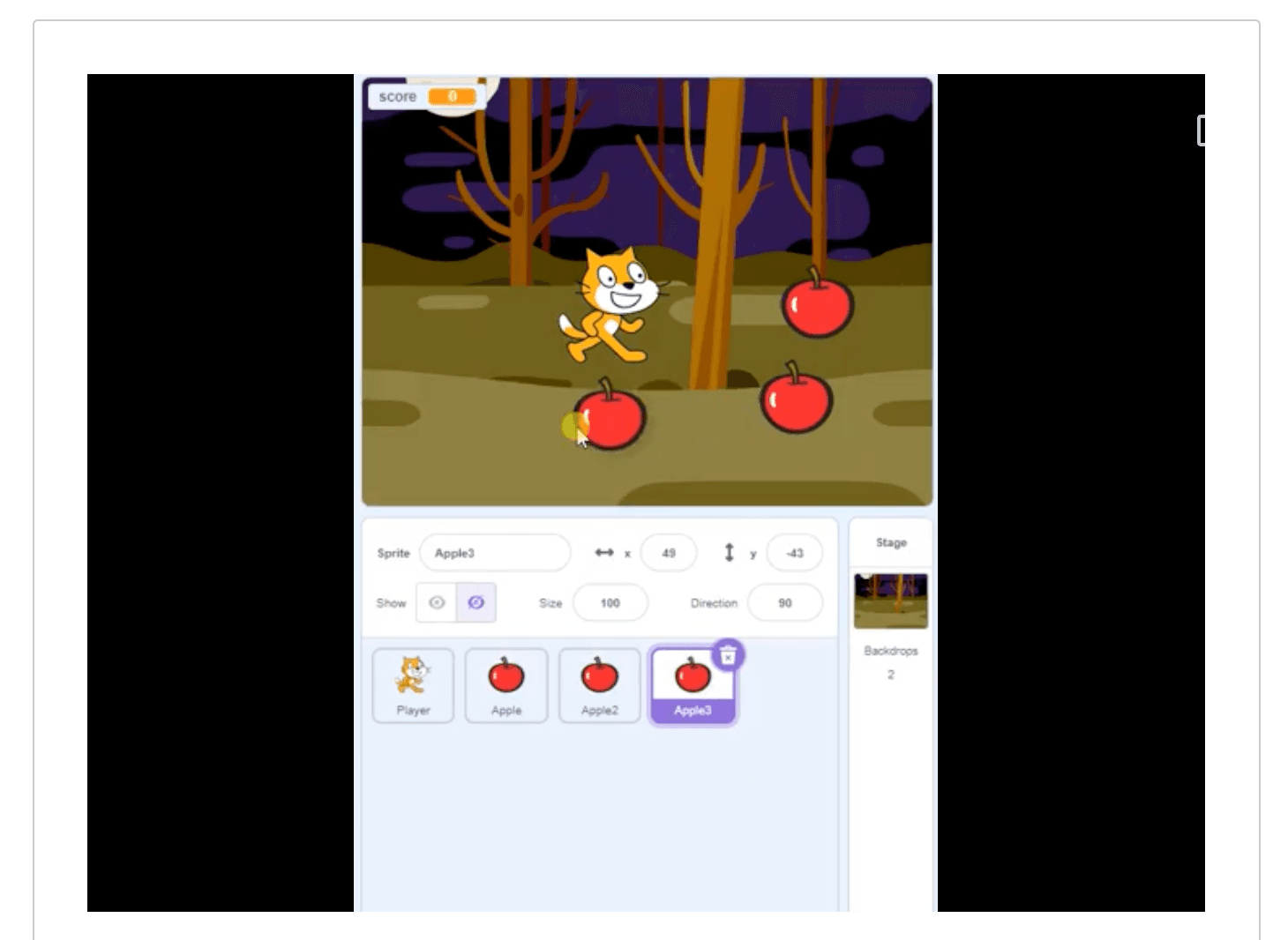
In the sprite panel, right-click on the item sprite and select duplicate. In the game preview window, click and drag the copied item to change its position. Make as many copies of your item as you can fit on the screen!
Set the starting position of your character
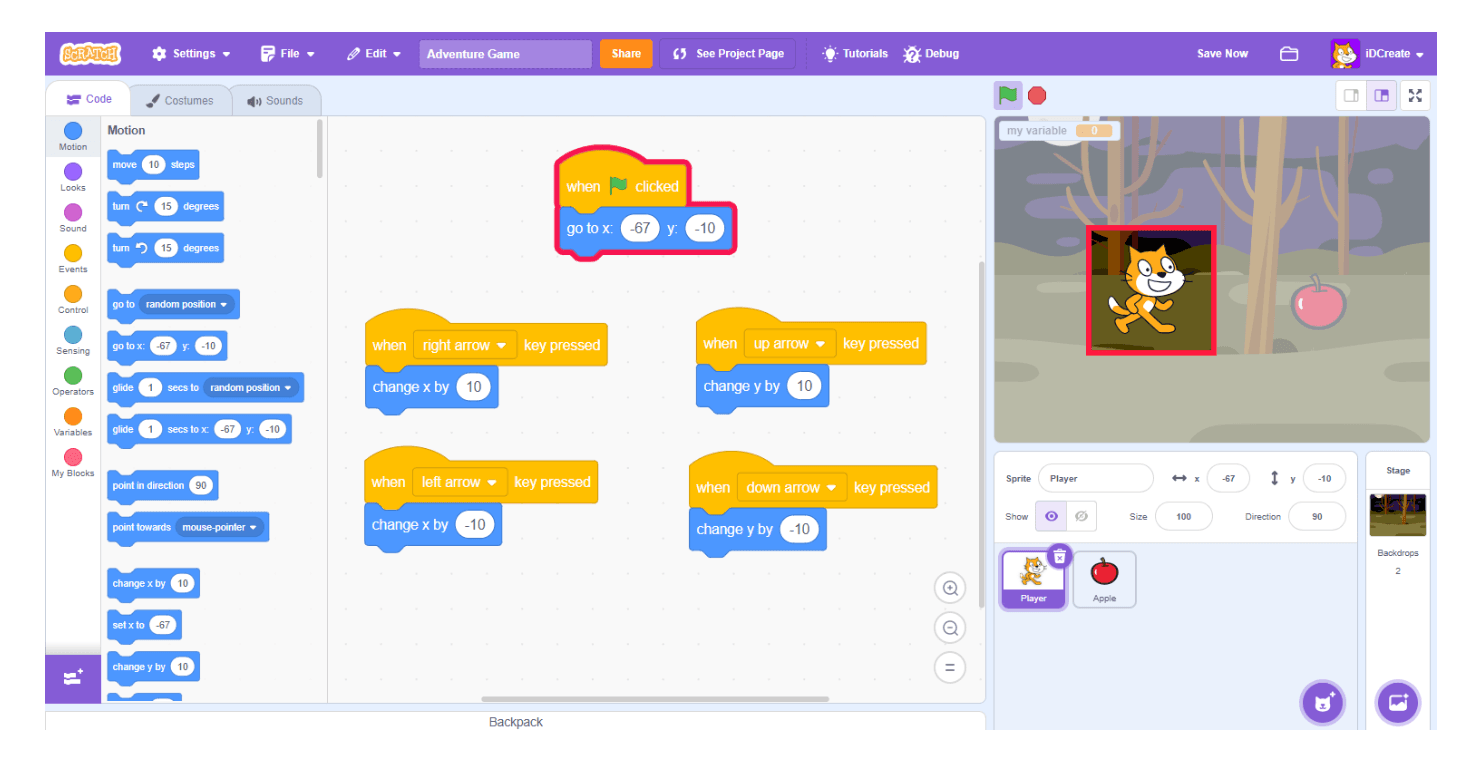
Right now, the player probably starts wherever you last left them. Add a go to x: y: block under your player's when flag clicked block to make sure they always start in the same spot when the game begins.
Want more Scratch game design tutorials?
iD Tech's online courses and Scratch summer camps guide kids and teens through everything from basic animation to full platformer games—with live instructors and project-based lessons that build real coding confidence.
If your child wants to keep practicing, check out these resources:


